MTR / PRODUCT & TRAINING MEDIA

Show the workflow.
Explain the decisions.

12 narrated short videos, 12 narrated training videos, and downloadable screenshots from the actual MTR React interface using fictional records. These are narrated, captioned, screenshot-based walkthroughs—not live end-to-end transaction recordings. Narration uses a synthetic English voice. Playback is user-controlled. Saves, uploads, email delivery and financial posting were disabled.

Create a new load — fictional MTR data
WORKFLOW 01

Create a new load

From Load Desk or the intake actions, choose + Create Load(s). Use a Confirmation or TONU to establish a new load identity. A supporting BOL is not a replacement for the Confirmation.

Steps & downloads
  1. Open the intake

    From Load Desk or the intake actions, choose + Create Load(s). Use a Confirmation or TONU to establish a new load identity. A supporting BOL is not a replacement for the Confirmation.

  2. Choose the source files

    Choose or drop the appropriate PDF files. Review file names and remove unintended files before uploading. The dialog allows up to 20 PDFs, with a 50 MB limit for each file.

  3. Review the processing result

    In the live app, Upload & process queues intake. Check the resulting load or Document Inbox. Completed processing does not guarantee that every document was confidently matched.

Download short MP4 · Download training MP4 · Download screenshot

Read training transcript

Set up a driver — fictional MTR data
WORKFLOW 02

Set up a driver

In Drivers & Equipment, choose Add Driver. Enter a unique assigned number and the correct first and last name. This example uses fictional driver D-104, Jordan Ellis.

Steps & downloads
  1. Establish the identity

    In Drivers & Equipment, choose Add Driver. Enter a unique assigned number and the correct first and last name. This example uses fictional driver D-104, Jordan Ellis.

  2. Check contact information

    Review the email, phone and address. Use an address the person controls for any login invitation. The example.com address and 555 phone number here are deliberately fictional.

  3. Review before saving

    Check the HR & Payroll and Compliance tabs. Review the User account options before Save & Create User. Account creation and sending an activation invitation are separate decisions.

Download short MP4 · Download training MP4 · Download screenshot

Read training transcript

Set up a truck — fictional MTR data
WORKFLOW 03

Set up a truck

Choose Add Truck in Drivers & Equipment. Enter the unit number, VIN, year, make and model. Use the actual vehicle VIN in production; the visible DEMO VIN is not a valid vehicle identifier.

Steps & downloads
  1. Identify the vehicle

    Choose Add Truck in Drivers & Equipment. Enter the unit number, VIN, year, make and model. Use the actual vehicle VIN in production; the visible DEMO VIN is not a valid vehicle identifier.

  2. Review ownership

    Confirm the ownership type. When an owner is required, select an existing Personnel Owner using the autocomplete. Do not use a company administrator as a substitute for the subcontractor owner.

  3. Complete compliance details

    Review the plate state, registration expiration and DOT inspection expiration. Save the profile, then add the supporting files. Source dates should be verified against the actual documents.

Download short MP4 · Download training MP4 · Download screenshot

Read training transcript

Set up a trailer — fictional MTR data
WORKFLOW 04

Set up a trailer

Choose Add Trailer. Enter the trailer unit number and vehicle identity. Keep a trailer record distinct from the truck that may pull it today.

Steps & downloads
  1. Create a distinct trailer record

    Choose Add Trailer. Enter the trailer unit number and vehicle identity. Keep a trailer record distinct from the truck that may pull it today.

  2. Check ownership and identifiers

    Verify the VIN, year, make and model against the supporting records. Confirm the ownership type and the existing owner association where applicable.

  3. Save and maintain the file

    Check compliance dates, save the profile and attach the relevant documents. When assignments change, review the new truck and trailer combination rather than assuming the previous pairing still applies.

Download short MP4 · Download training MP4 · Download screenshot

Read training transcript

Prepare invoices — fictional MTR data
WORKFLOW 05

Prepare invoices

Open Invoicing and review the Ready grid. Confirm the load, broker, amount and available supporting documents. Resolve readiness issues before attempting delivery.

Steps & downloads
  1. Start with readiness

    Open Invoicing and review the Ready grid. Confirm the load, broker, amount and available supporting documents. Resolve readiness issues before attempting delivery.

  2. Select the intended loads

    Select individual eligible rows or Select filtered loads. Verify the count and dollar total. These two fictional loads total $4,200: $2,400 for factoring and $1,800 for direct billing.

  3. Review delivery settings

    Check the invoice settings and destination before Submit Selected Invoice(s). Keep email preview enabled when you want to review the draft. This demonstration does not create or send invoices.

Download short MP4 · Download training MP4 · Download screenshot

Read training transcript

Build a driver settlement — fictional MTR data
WORKFLOW 06

Build a driver settlement

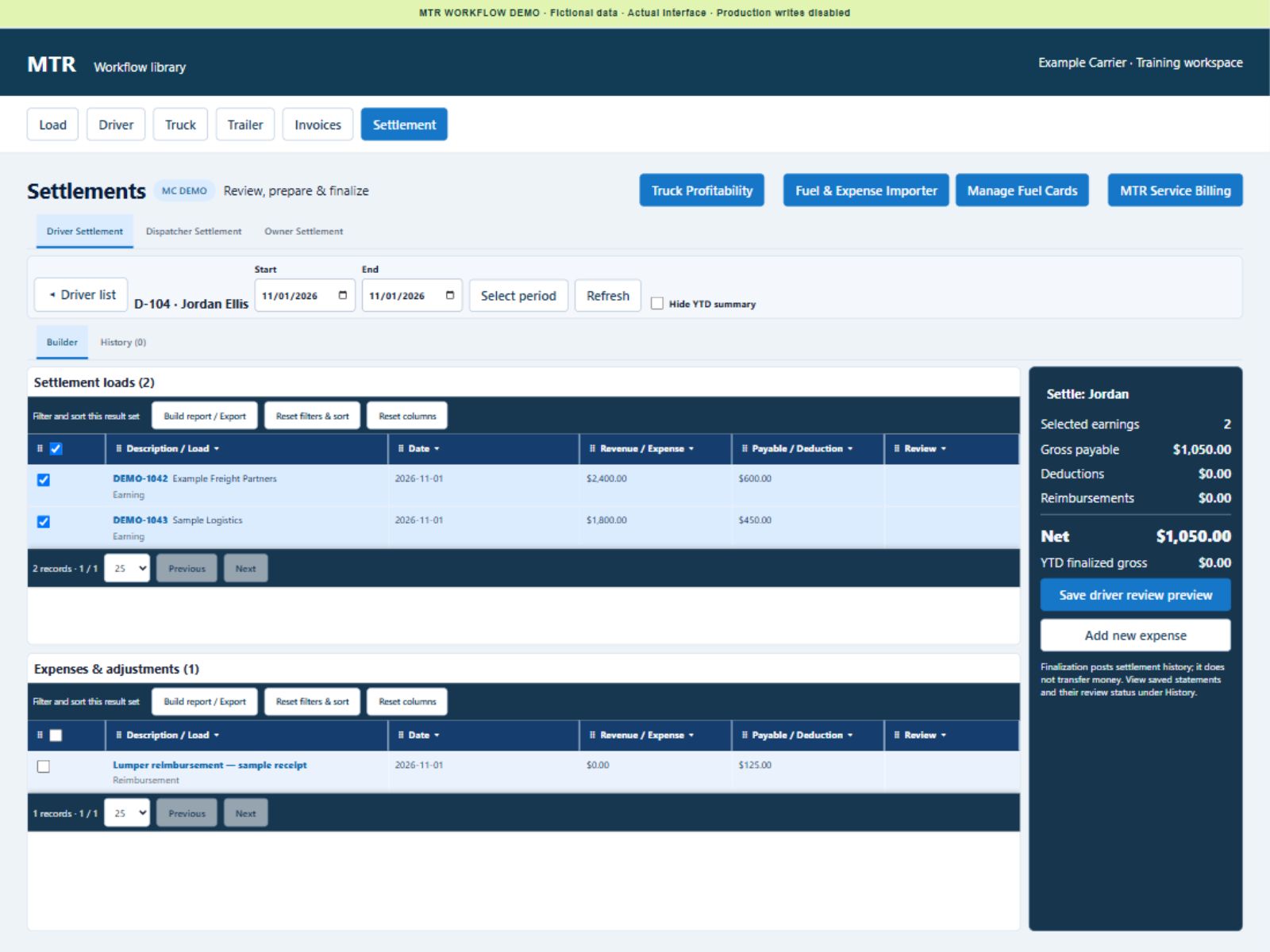
Open Driver Settlement, locate the driver and expand the settlement. Confirm the assigned number and pay setup. Use the correct start and end dates for the settlement period.

Steps & downloads
  1. Select the driver

    Open Driver Settlement, locate the driver and expand the settlement. Confirm the assigned number and pay setup. Use the correct start and end dates for the settlement period.

  2. Review earnings and adjustments

    Review each selected load and expense. The sample shows $600 plus $450 in earnings and a $125 reimbursement. Selection determines which eligible items are included.

  3. Prepare for review

    Verify the $1,175 sample net and use Save driver review preview in the live workflow. Review before finalization. Finalizing records settlement history; it does not itself transfer money.

Download short MP4 · Download training MP4 · Download screenshot

Read training transcript

Review a driver pay plan — fictional MTR data
WORKFLOW 07

Review a driver pay plan

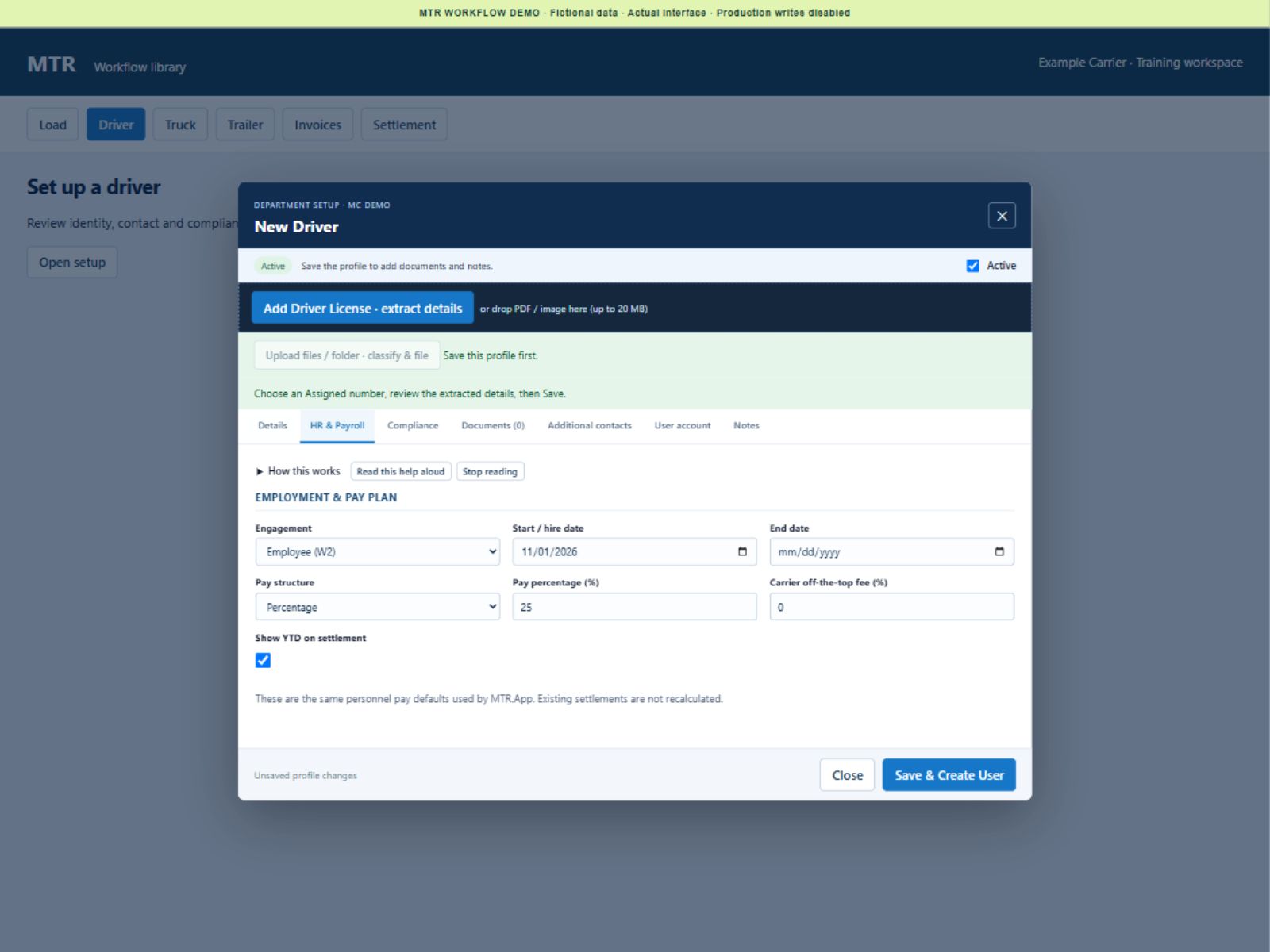
Open the driver profile and select HR & Payroll. Confirm the engagement type and hire date before reviewing compensation settings.

Steps & downloads
  1. Open HR & Payroll

    Open the driver profile and select HR & Payroll. Confirm the engagement type and hire date before reviewing compensation settings.

  2. Choose the pay structure

    Select the appropriate pay structure and enter the agreed rate. This demonstration shows a 25 percent pay plan. Check the carrier off-the-top fee separately, where used.

  3. Check the effect of changes

    Review the Show YTD on settlement option. The screen notes that existing settlements are not recalculated. Validate future settlement calculations after an authorized pay-plan change.

Download short MP4 · Download training MP4 · Download screenshot

Read training transcript

Maintain driver compliance dates — fictional MTR data
WORKFLOW 08

Maintain driver compliance dates

Select the driver and open Compliance. Check the license number and issuing state against the source document. Do not infer an expiration date from a filename.

Steps & downloads
  1. Open the compliance tab

    Select the driver and open Compliance. Check the license number and issuing state against the source document. Do not infer an expiration date from a filename.

  2. Enter verified dates

    Review the license issue date, license expiration and medical expiration. Keep the supporting documents in the correct Personnel file and review extraction results for accuracy.

  3. Keep the record current

    Check other applicable review dates, such as the last MVR review. Save authorized changes in the live app and monitor the relevant requirements and expiration queues.

Download short MP4 · Download training MP4 · Download screenshot

Read training transcript

Maintain truck compliance dates — fictional MTR data
WORKFLOW 09

Maintain truck compliance dates

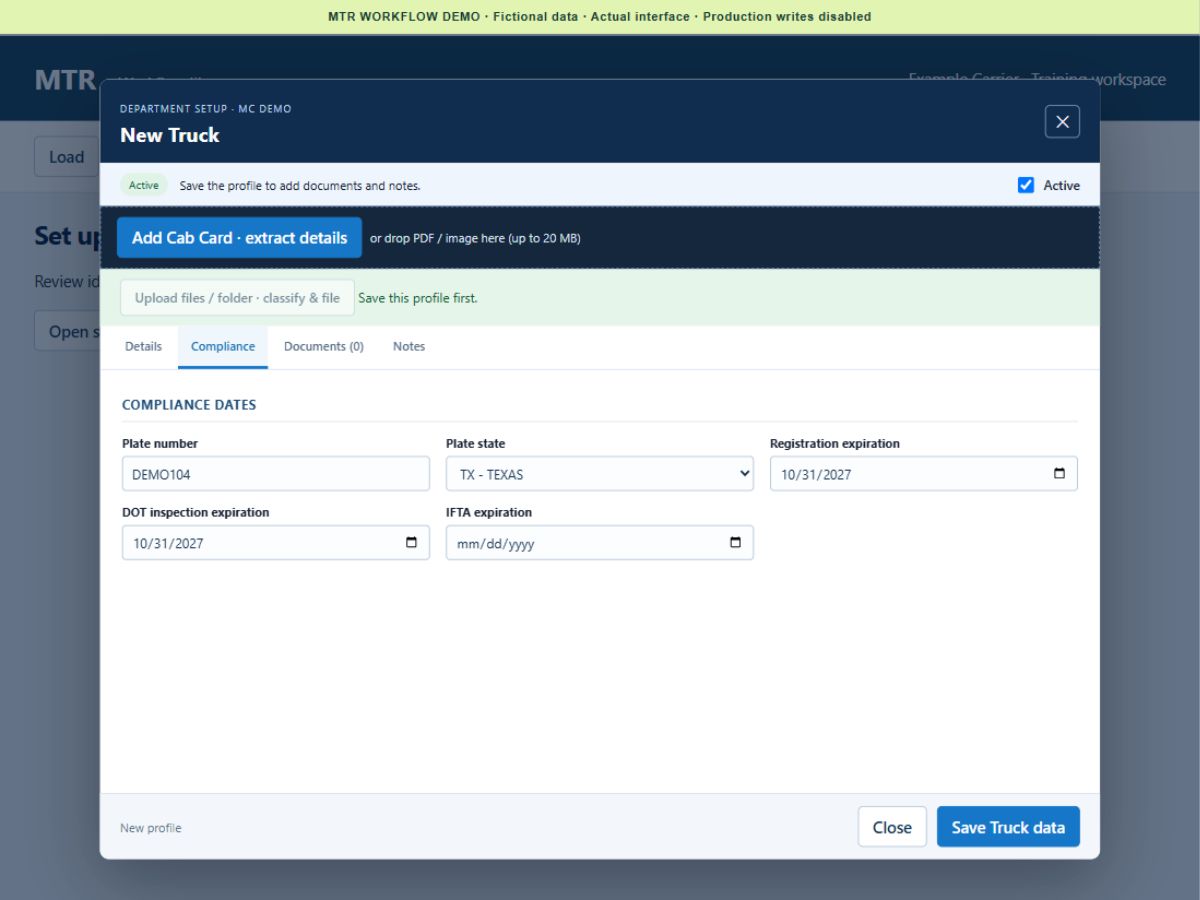
Open the correct truck profile by unit number and VIN. Registration and inspection information should belong to that specific vehicle.

Steps & downloads
  1. Confirm the truck

    Open the correct truck profile by unit number and VIN. Registration and inspection information should belong to that specific vehicle.

  2. Review registration and inspection

    Open Compliance. Verify plate number, plate state, registration expiration and DOT inspection expiration. Roadside enforcement reports are distinct from annual service-center inspections.

  3. Keep evidence with the record

    Save verified dates and attach the supporting files. Check each document type and expiration. A date on a screen is not a substitute for the underlying record.

Download short MP4 · Download training MP4 · Download screenshot

Read training transcript

Select factoring or direct-bill invoices — fictional MTR data
WORKFLOW 10

Select factoring or direct-bill invoices

The Ready grid shows factoring and direct-bill totals. Broker and load settings determine the appropriate treatment. Do not factor a load that is designated Do Not Factor.

Steps & downloads
  1. Understand the two groups

    The Ready grid shows factoring and direct-bill totals. Broker and load settings determine the appropriate treatment. Do not factor a load that is designated Do Not Factor.

  2. Filter, then inspect selection

    Use the Factor or Direct Bill total buttons to focus the grid. Review the filtered results and selection count. A filter changes the view; always confirm the actual selected items before submission.

  3. Check the final total

    Use individual checkboxes or the filtered-selection action as appropriate. Confirm the selected dollar amount and destination. Clear unwanted selections before processing.

Download short MP4 · Download training MP4 · Download screenshot

Read training transcript

Review invoice settings — fictional MTR data
WORKFLOW 11

Review invoice settings

Open Invoice settings & advanced controls when needed. The available controls depend on your permissions. Keep the grid visible for the day-to-day review.

Steps & downloads
  1. Expand advanced controls

    Open Invoice settings & advanced controls when needed. The available controls depend on your permissions. Keep the grid visible for the day-to-day review.

  2. Verify date, number and signer

    Check the invoice date and next number. Use the explicit number-change confirmation if changing it. Confirm the factoring company and the saved signing manager where applicable.

  3. Review delivery readiness

    Use the available readiness tools to understand missing setup. Review the selected loads before processing. This walkthrough does not validate real provider credentials or prove a delivery succeeded.

Download short MP4 · Download training MP4 · Download screenshot

Read training transcript

Review settlement reimbursements — fictional MTR data
WORKFLOW 12

Review settlement reimbursements

In the settlement builder, review the loads and the Expenses & adjustments grid. Verify that a reimbursement is due to the driver and has appropriate supporting evidence.

Steps & downloads
  1. Separate earnings from expenses

    In the settlement builder, review the loads and the Expenses & adjustments grid. Verify that a reimbursement is due to the driver and has appropriate supporting evidence.

  2. Compare the selected totals

    With the sample $125 reimbursement included, the net is $1,175. With it excluded, the net is $1,050. This demonstrates the selection effect, not a recommendation to omit a valid reimbursement.

  3. Save a reviewable preview

    Confirm the final items, dates and net amount before saving the review preview. Do not pay the same expense twice. Follow your authorized review and finalization process.

Download short MP4 · Download training MP4 · Download screenshot

Read training transcript

MTR workflow

Synthetic English narration · Fictional data · Captions are also displayed in the video. Use the player controls for volume, pause and fullscreen.